



Before you retire the hardware

Keep the whole drive.Decide what matters later.

Retiring a computer or sorting inherited drives? Keep every readable part in a checked, repairable archive. Verify it and make a second copy before you erase or recycle the original.

Free Reader included. Licences and pricing →

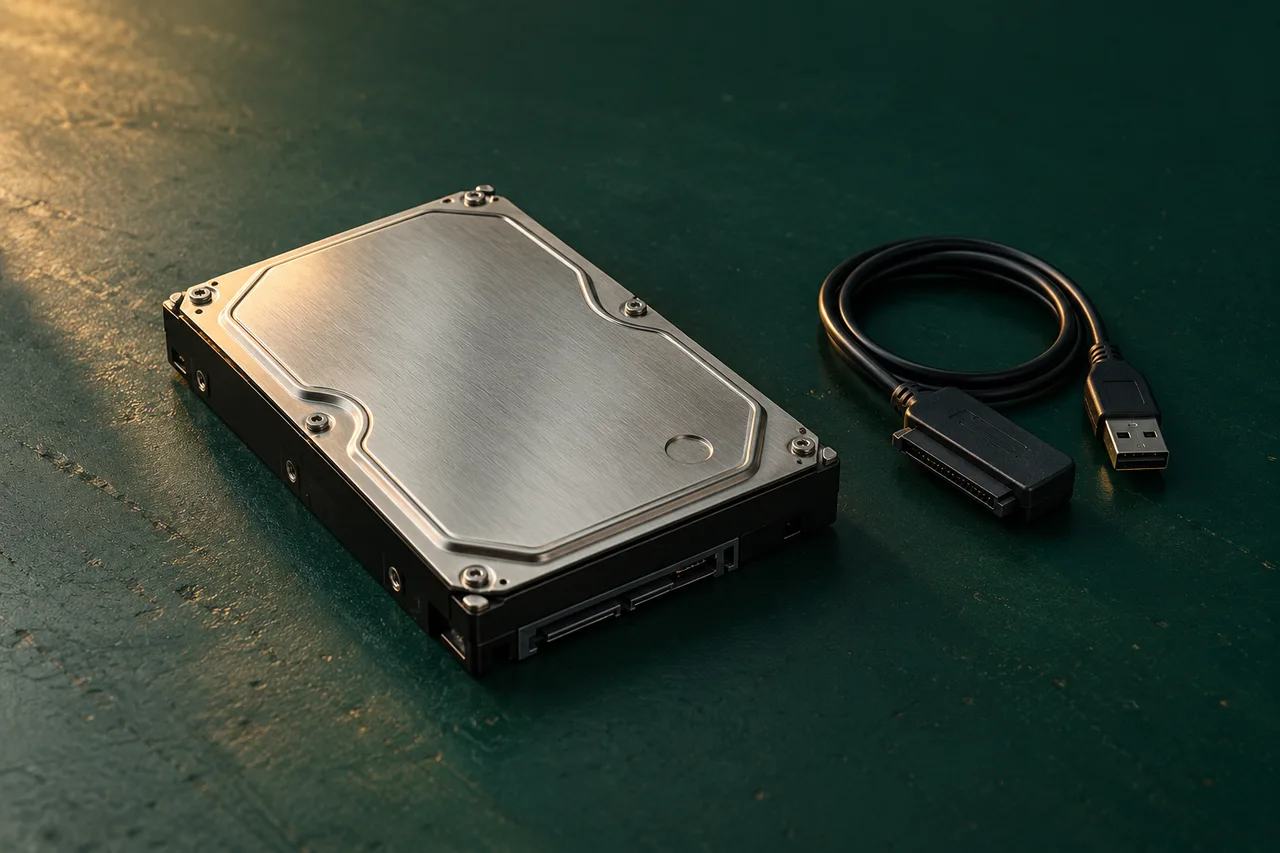
A retired computer hard drive on an evergreen workbench.
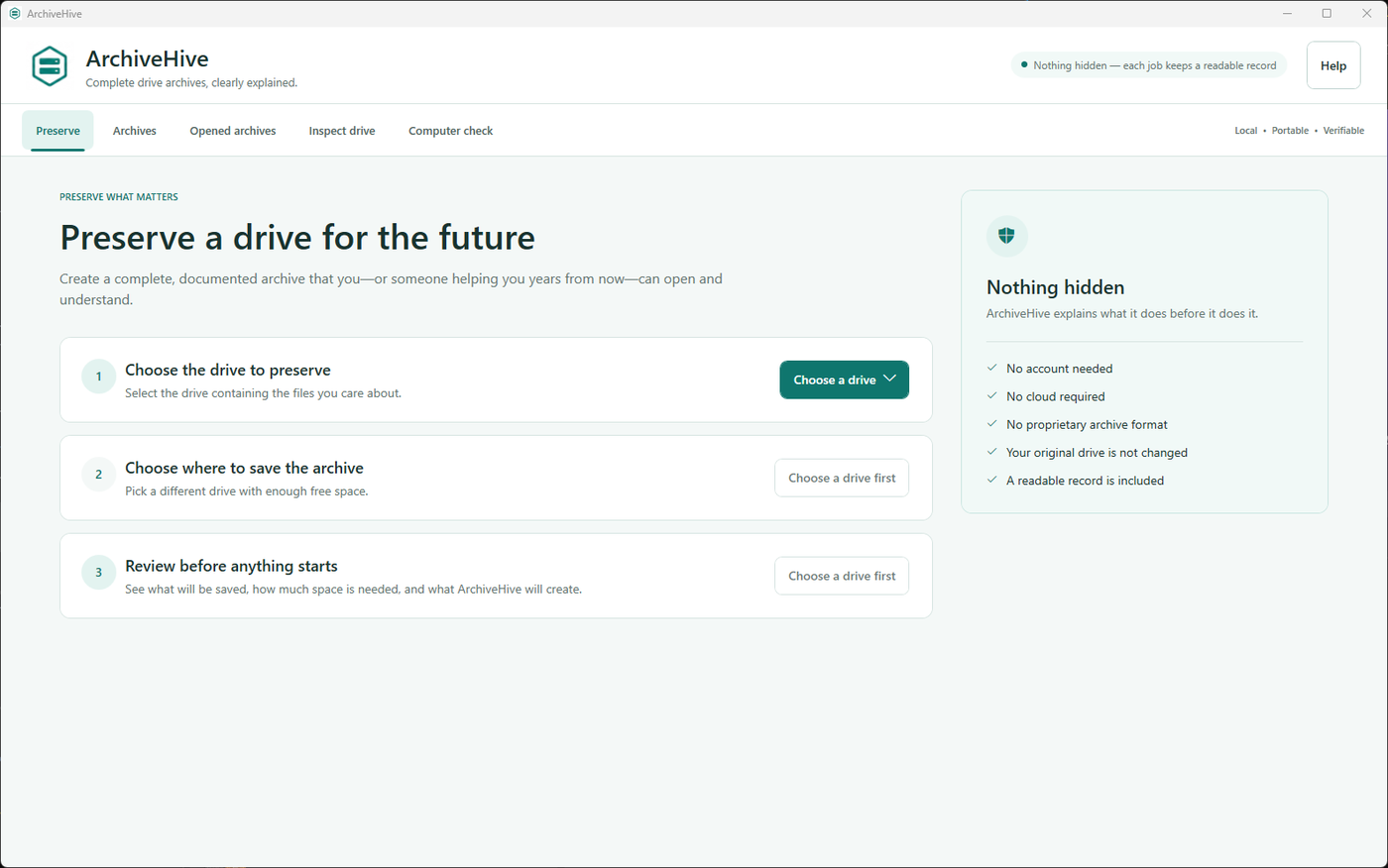
ArchiveHive for WindowsPreserve a drive
ArchiveHive's Preserve screen shows three steps: choose the drive, choose where to save, and review before starting.
ArchiveHive for Windows · View full-size screenshot

How to archive a drive

Verify your archive and make a second checked copy before you erase or recycle the original drive.

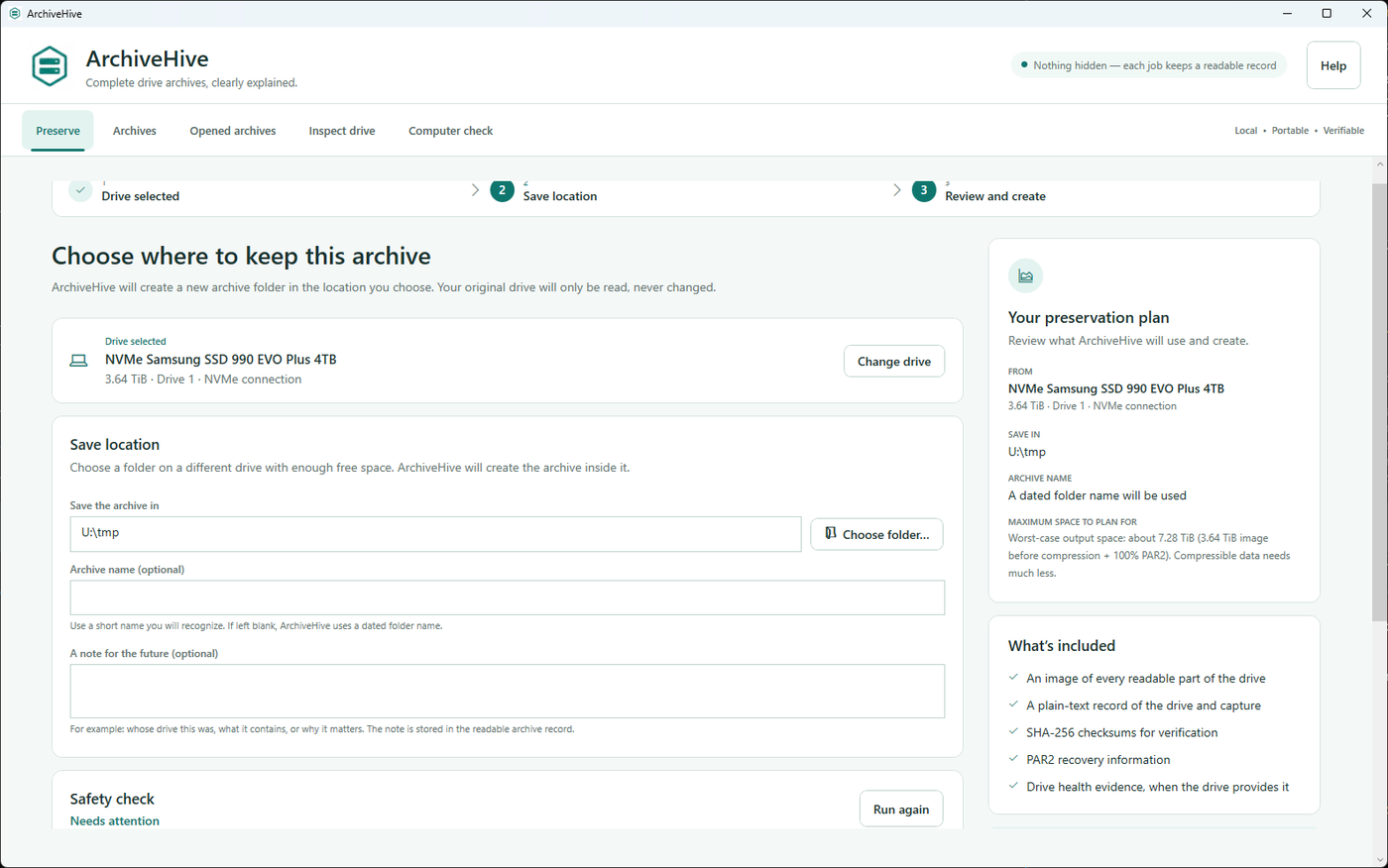
ArchiveHive planning screen showing the selected drive, storage estimate and options before capture.
Review the drive and storage estimate before starting. View full size
  1. Choose the source

    Identify the drive by its model, capacity, and serial number, then choose where to save the archive.

  2. Create the archive

    Review the space required, then copy every readable part into an archive. Pause and resume when you need to.

  3. Check the result

    Check the archive for damage and review any parts the drive could not read.

  4. Keep another copy

    Copy the whole archive folder to a separate location. Register both copies and check them over time. Keep the original until both copies are confirmed.

Read the step-by-step guide →

Find files, check copies and repair damage

Find a file
Search capture-time catalogs, or build one for an older archive. Browse and extract supported files without mounting the disk.
Check every copy
Check all copies in the folders you have added, and see which are healthy, damaged, or unavailable.
Repair damaged pieces
Repair using another copy or the archive’s recovery data. See how repair works →
Schedule checks
Turn on regular checks and keep a dated history. Optional repair can fix damage while your computer is awake and archive locations are connected.
More features and limits

Included

  • Pause and resume a checkpointed capture.
  • Retry difficult sectors with multipass rescue reads.
  • Record unreadable regions instead of hiding them.
  • Collect before-and-after drive health evidence.
  • Verify and repair archives, including from a healthy replica.
  • Mount an archive temporarily as a read-only virtual disk.
  • Extract the complete image to a standard .img file.
  • Extract individual files and folders.
  • Import raw, E01, VHD and VHDX images (command line).
  • Find which indexed archive contains a file name, path, or hash.

Before you choose ArchiveHive

  • It does not upload or sync archives to cloud storage.
  • You can archive encrypted drives. Keep the password or recovery key to unlock their contents later.
  • For APFS (used by modern Macs), export the disk image and open it on a compatible Mac. ArchiveHive cannot browse APFS files directly.
  • It cannot repair damaged hardware or recover bytes a source drive never returned.

What’s in an archive?

Keep your drive’s contents together with the means to check and repair them. Public formats and included instructions let you recover the image even without ArchiveHive.

Preserve the drive
Every readable sector, saved as compressed image chunks.Zstandard compression ↗
Detect changes
Check each chunk against its recorded checksum to find damage.SHA-256 checksums ↗
Repair damage
Rebuild damaged chunks when enough good data survives.PAR2 recovery data ↗
Keep it understandable
Capture details, recovery instructions, and format specifications travel with the image.TOML metadata ↗

Follow a worked example: recover our sample archive using other tools →

Repair an archive using another copy

The same positions appear in each folder. Green blocks survive; amber dashed blocks are damaged.

ArchiveHive's Repair damaged archive control explains that it first uses good pieces from other copies, then recovery data.
Repair controls in the Windows app · View full size
Piece 1 is intact; piece 2 is damaged.
Copy APiece 1 survives
Piece 2 is intact; piece 1 is damaged.
Copy BPiece 2 survives
Repaired resultBoth pieces checked

Choose your licence

Same features. Personal for home use; Commercial for your organisation.

Free Reader

Open, search, check and repair archives, and recover files. Included in every download; no licence needed.

Download Free Reader

Each licence is for one person and works on their Windows and Mac computers. It does not expire and includes all updates to version 2. There is no subscription.

Personal

For your own drives, and the drives of people you are helping out.

$49one-time payment$59

Launch offer ends 31 October. Regular price: $59.

  • Your own drives
  • Drives belonging to your household
  • Helping friends and family with their drives

Not for archiving drives as part of a business or paid service.

Buy Personal — $49

Commercial

For archiving drives within a business, lab, or other organisation.

$149one-time payment$199

Launch offer ends 31 October. Regular price: $199.

  • Drives used within your business, lab or organisation

This licence covers your organisation’s own drives. Paid work on clients’ drives requires a separate services licence.

Ask about a services licenceBuy Commercial — $149

Thirty-day refund, no questions asked.

Frequently asked questions

Do I need a licence to open an archive?

No. You can open, search, check and repair existing archives, and recover their files, for free. You only need a licence to create a new archive from a drive.

Is there a trial?

There is no time-limited trial. Instead there is a thirty-day refund with no questions asked: buy it, try it on your own drive, and if it does not work for you, write to us.

Will it work on a drive that is failing?

ArchiveHive can retry difficult sectors and records any regions it cannot read, but no imaging tool can make a failing drive safe to read. If the only copy of something irreplaceable is on a drive that is already failing, stop and consult a specialist recovery lab before reading it again. Preserve drives before they fail whenever you can.

What is actually in the archive folder?

A sector-level image of the drive in Zstandard-compressed chunks, SHA-256 checksums for every chunk, PAR2 recovery data that can repair damaged chunks, a TOML manifest describing the drive and the capture, and a plain-text recovery guide with copies of the format specifications. All of it can be read with ordinary tools that have nothing to do with us.

Does it send anything anywhere?

ArchiveHive sends no telemetry or archive contents to Steeltype. It contacts us to check for updates or fetch a licence when you enter an activation code. Automatic update checks are off by default; you can enable them or check manually. Archives stored on a network drive use the connection to the location you choose.

Are Windows and macOS archives the same?

Yes. Archives can be checked, repaired and extracted on either platform. Direct file extraction uses the same bounded filesystem readers on both; APFS and unsupported structures still need a compatible host or other tools. Encrypted data needs its recovery keys. The same licence file works on both platforms.

Which Macs are supported?

Apple silicon Macs running macOS 13 or later. Intel Macs are not supported in this release.

How long does it take, and how much space do I need?

Expect hours for a large drive, and longer when difficult sectors need repeated attempts. Space depends on the contents and recovery protection: photos, video, and encrypted data may compress very little. The default 100% recovery protection adds roughly the compressed image’s size again. The planning screen estimates the maximum before you begin. Whole-image export and mounting need space roughly equal to the original drive capacity. Selected-file extraction needs space for the chosen output and its receipts.

Get ArchiveHive

For Windows and macOS. Open an archive for free, or choose a licence to create your own.

Download ArchiveHive →